
Prince
  • Buy Prince
  • Samples
  • Documentation
  • Forum
  • Download
  • Installation Guide
  • User Guide
  • Reference Guide

Contents

  • 1. Getting Started
    • Installing Prince
      • Installing Prince on Windows
      • Installing Prince on MacOS X
      • Installing Prince on Linux
        • Debian and Ubuntu
        • Redhat and CentOS
        • OpenSUSE
        • FreeBSD, Solaris and Generic Linux
      • Installing a license file
      • Installation Layout
        • Windows installation layout
        • MacOS X installation layout
        • Linux installation layout
    • Your First Document
      • The lab report
      • Processing the document
      • Styling the document
  • 2. Styling
    • Fonts
      • Defining a font family
      • Generic font families
      • OpenType Features in Prince
      • Redefining the generic font families
    • Layout
      • Text formatting
      • Paragraph formatting
      • Writing Mode
      • CSS Box Model
        • Margin
        • Padding
        • Border
        • Background
      • Tables
        • Automatic table layout
        • Fixed table layout
        • Separated table borders
        • Collapsing table borders
        • Cells that span columns
        • Cells that span rows
        • Numbering table rows
        • Running table headers and footers
        • Table captions
      • Lists
        • List marker position
        • List marker type
        • List marker style
      • Columns
      • Floats
        • Prince extensions to floats
      • Footnotes
        • Footnote calls
        • Footnote markers
        • Styling footnotes
    • Paged Media
      • Page size
      • Page style
      • Trimming marks
      • Page regions
        • Generated content in page regions
      • Selecting pages
        • Blank pages
      • Controlling pagination
        • Page breaks
        • Widows and orphans
  • 3. Scripting
    • JavaScript in Printed Media
    • Logging
    • Console access
    • Event handling
    • Document statistics
    • PDF properties
    • Unsupported DOM properties
  • 4. Graphics
    • Color
      • RGB
      • RGBA
      • CMYK
      • Spot colors
    • Color Management
      • Introduction
      • Color Management and PDF Profiles
      • Color Management in Prince
      • Color conversion
      • Rich black and true black
      • Page color space
    • Filters
    • Images
      • Images in XHTML
      • Images in DocBook
      • Images in Arbitrary XML
      • CSS and Images
        • Image Size in Print
    • Scalable Vector Graphics (SVG)
      • Viewbox and viewport
      • Rectangles
      • Circles
      • Ellipses
      • Lines
      • Masks
      • Polylines
      • Polygons
      • Paths
      • Text
      • Images
      • Links
      • Transformations
      • Style Properties
    • Rasterization
  • 5. Prince Tips and Tricks
    • Generated Content
      • Page headers and footers
      • List markers
      • Footnote markers
      • Before and After pseudo-elements
      • Counters and Numbering
        • Counter reset and increment
        • Nested counters
        • Counter styles
      • Cross-references
        • Using target-counter
        • Using target-content
      • Script Functions
        • Accessing the current date and time
        • User-defined counter styles
      • Using generated content in page regions
      • Copying text content from the document
      • Taking elements from the document
    • Advanced paged media examples
      • Named pages
      • Page groups
      • Page breaks and decoration
      • Printing wide content sideways
    • Hyphenation
    • Typographic Ligatures
    • Watermarks
    • Rotating content in table cells
    • The "Two-Pass" Solution
  • 6. Help
    • Troubleshooting
      • Missing glyphs or fonts
      • Fontconfig
      • Image formats
      • Shared library trouble
      • PATH issues
      • The capture/replay system
      • Running the debug script
    • Frequently Asked Questions
  • 7. Prince Input
    • Applying Style Sheets in Prince
      • Importing Style Sheets
      • Conflicting Declarations
      • Priority Determination
    • Applying JavaScript in Prince
    • XML Input
      • XML Input
        • Validation
        • xml:lang
        • xml:id
        • xml:base
      • XML Styling
      • XML Inclusions (XInclude)
        • Including XML files
        • Including text files
        • Fallback
  • 8. Prince Output
    • PDF Profiles
      • PDF/A
      • PDF/X
    • PDF Output Options
      • PDF Links
      • PDF Actions
      • PDF Pages
      • PDF Printing
      • PDF Compression
      • Font Embedding
      • Creating PostScript output
    • PDF Bookmarks
      • Bookmark levels
      • Bookmark labels
      • Bookmark targets
    • PDF Metadata
      • XMP Metadata
  • 9. Server Integration
    • Security and performance
    • Prince Wrappers
      • Third-Party Wrappers
      • Using Prince from Java
      • Using Prince from .NET with C#
      • Using Prince from .NET with VB.NET
      • Using Prince from Python
      • Using Prince from Perl
      • Using Prince from PHP
      • Using Prince from ASP
      • Using Prince from ColdFusion
      • Using Java
      • Using ActiveX/COM
      • Using Prince from ActiveX / COM / Visual Basic
    • Advanced Command Line Options
      • Prince Control Protocol
      • Structured Log

Reference Guide

  • A1. Command-line Reference
    • Examples
    • Specifying input and output
    • Options
      • General Options
      • Logging Options
      • Input Options
      • Network Options
      • JavaScript Options
      • CSS Options
      • PDF Output Options
      • PDF Metadata Options
      • PDF Encryption Options
      • Raster Output Options
      • Utility Options
      • Advanced Control and Log Options
  • A2. CSS References
    • CSS Features
    • Length Units
      • Absolute Length Units
      • Font Length Units
      • Pixel Unit
  • A3. CSS Properties
    • alternate-color
    • background
    • background-attachment
    • background-clip
    • background-color
    • background-image
    • background-origin
    • background-position
    • background-repeat
    • background-size
    • baseline-shift
    • border
    • border-bottom
    • border-bottom-color
    • border-bottom-left-radius
    • border-bottom-right-radius
    • border-bottom-style
    • border-bottom-width
    • border-clip
    • border-collapse
    • border-color
    • border-left
    • border-left-color
    • border-left-style
    • border-left-width
    • border-radius
    • border-right
    • border-right-color
    • border-right-style
    • border-right-width
    • border-spacing
    • border-style
    • border-top
    • border-top-color
    • border-top-left-radius
    • border-top-right-radius
    • border-top-style
    • border-top-width
    • border-width
    • bottom
    • box-decoration-break
    • box-sizing
    • caption-side
    • clear
    • clip
    • clip-path
    • clip-rule
    • color
    • column-break-after
    • column-break-before
    • column-count
    • column-fill
    • column-gap
    • column-rule
    • column-rule-color
    • column-rule-style
    • column-rule-width
    • column-span
    • column-width
    • columns
    • content
    • counter-increment
    • counter-reset
    • direction
    • display
    • dominant-baseline
    • empty-cells
    • fill
    • fill-opacity
    • fill-rule
    • filter
    • float
    • font
    • font-family
    • font-size
    • font-stretch
    • font-style
    • font-variant
    • font-weight
    • footnote-display
    • footnote-style-position
    • height
    • hyphens
    • left
    • letter-spacing
    • line-height
    • line-stacking-strategy
    • list-style
    • list-style-image
    • list-style-position
    • list-style-type
    • margin
    • margin-bottom
    • margin-inside
    • margin-left
    • margin-outside
    • margin-right
    • margin-top
    • marker-end
    • marker-mid
    • marker-start
    • marks
    • mask
    • max-height
    • max-width
    • min-height
    • min-width
    • opacity
    • orphans
    • overflow
    • overflow-wrap
    • padding
    • padding-bottom
    • padding-left
    • padding-right
    • padding-top
    • page
    • page-break-after
    • page-break-before
    • page-break-inside
    • position
    • prince-background-image-resolution
    • prince-bleed
    • prince-bookmark-label
    • prince-bookmark-level
    • prince-bookmark-state
    • prince-bookmark-target
    • prince-caption-page
    • prince-fallback-cmyk-profile
    • prince-filter-resolution
    • prince-flow
    • prince-footnote-policy
    • prince-forced-breaks
    • prince-hyphenate-after
    • prince-hyphenate-before
    • prince-hyphenate-character
    • prince-hyphenate-lines
    • prince-hyphenate-patterns
    • prince-image-magic
    • prince-image-resolution
    • prince-linebreak-magic
    • prince-link
    • prince-mark-length
    • prince-mark-offset
    • prince-mark-width
    • prince-page-group
    • prince-pdf-color-conversion
    • prince-pdf-color-options
    • prince-pdf-destination
    • prince-pdf-duplex
    • prince-pdf-link-type
    • prince-pdf-open-action
    • prince-pdf-output-intent
    • prince-pdf-page-colorspace
    • prince-pdf-page-label
    • prince-pdf-page-layout
    • prince-pdf-page-mode
    • prince-pdf-paper-tray
    • prince-pdf-print-scaling
    • prince-pdf-profile
    • prince-pdf-script
    • prince-pdf-xmp
    • prince-rotate-body
    • prince-shrink-to-fit
    • prince-text-justify
    • prince-text-replace
    • prince-tooltip
    • prince-trim
    • prince-wrap-inside
    • right
    • size
    • src
    • stop-color
    • stop-opacity
    • string-set
    • stroke
    • stroke-dasharray
    • stroke-dashoffset
    • stroke-linecap
    • stroke-linejoin
    • stroke-miterlimit
    • stroke-opacity
    • stroke-width
    • table-baseline
    • table-column-span
    • table-layout
    • table-row-span
    • text-align
    • text-align-last
    • text-anchor
    • text-decoration
    • text-indent
    • text-line-through
    • text-line-through-color
    • text-line-through-style
    • text-overflow
    • text-overline
    • text-overline-color
    • text-overline-style
    • text-transform
    • text-underline
    • text-underline-color
    • text-underline-style
    • top
    • transform
    • transform-origin
    • unicode-bidi
    • unicode-range
    • vertical-align
    • visibility
    • white-space
    • widows
    • width
    • word-break
    • word-spacing
    • writing-mode
    • z-index
  • A4. CSS Selectors
    • Terminology and Definitions
    • Logical Combinations
    • Elemental Selectors
    • Attribute Selectors
    • Linguistic Pseudo-classes
    • Location Pseudo-classes
    • Tree-Structural pseudo-classes
    • Combinators
    • Tree-Abiding Pseudo-element Selectors
    • Typographic Pseudo-element Selectors
    • Footnote Pseudo-element Selectors
    • Page Selectors
  • A5. CSS Media Queries
    • Media Queries
    • Media Query Modifiers
    • Media Types
    • Media Features
    • Dimension Media Features
    • Display Quality Media Features
    • Color Media Features
    • Interaction Media Features
    • Scripting Media Features
  • A6. CSS Functional Expressions
    • CSS Functions
    • Prince Specific Functions
  • A7. CSS At-rules
    • Initial At-Rules
    • Nested At-Rules
  • A8. Page Size Keywords
  • A9. Character Entities
    • Accented Letters
    • Symbols
    • Quotes
    • Accents
    • Miscellaneous
  • A10. Acknowledgements

Advanced paged media examples

Named pages

Sometimes it is necessary to style pages depending on their content; named pages allow us to select pages that contain particular elements. We used this in Restarting page numbering, to apply a style to the table of contents pages to print their page numbers using roman numerals.

The element containing the table of contents has a page property applied, specifying that this element's pages are table-of-contents pages. The page property may be applied to any block-level element within a non-floating environment in the normal flow.

.contents {
    display: block;
    page: table-of-contents;
}

Then using this page name to apply a different @page rule to the table-of-contents pages:

@page table-of-contents {
    @top { content: "Table of Contents" }
    @bottom {
        content: counter(page, lower-alpha)
    }
}

More than one element can belong to the same name, in other words, page names behave like CSS classes.

Prince will create a page break between elements belonging to different named pages, including elements without a named page. So in Restarting page numbering, a page break will be inserted after the the table of contents, because the next element has the page name main rather than table-of-contents.

Selectors such as :first, :Nth, :left and :right also work with named pages. For example:

@page preface {
    @bottom {
        content: counter(page, lower-alpha)
    }
}
@page preface:first {
    @bottom {
        content: normal;
    }
}

This example only works when a page name is used only once within a document, such as for the preface of a document (documents only have one preface). If you wish to apply a style to the first page of every chapter then you must use the prince-page-group property to create page groups:

div.chapter {
    page: chapter;
    page-break-before: right;
    prince-page-group: start;
}
@page chapter {
    @bottom {
        content: counter(page);
    }
}
@page chapter:first {
    @bottom {
        content: normal;
    }
}

The property prince-page-group: start instructs Prince to start a new page group. This is necessary for the div.chapter:first selector to match the first page of each chapter, instead of only the first page in the first chapter. See Page groups.

Page groups

When consecutive elements belong to the same named page but logically separate structures (such as individual chapters) Prince combines them into one page group. This causes it to apply the :first page selector to the first page of the whole page group only (the first page of chapter 1). Instead we usually want :first applied to the first page of each chapter.

This can happen either:

  • when chapters are separated by an element, such as h1 which may have page-break-before: right applied (this can be seen in Fancy headers);
  • or when each chapter is a block element such as a div.

Prince provides the prince-page-group property that can be used to start a new page group. It can be seen in Fancy headers applied to h1 elements in the body of the document.

div.body h1 {
    page-break-before: right;
    prince-page-group: start;
    ...
}

prince-page-group also forces a page break, overriding any properties that attempt to avoid page breaks. The more specific left and right page take precedence over prince-page-group.
Page breaks and decoration

Box decoration break sample
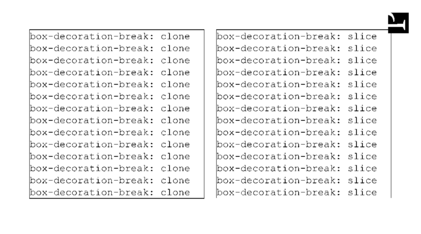
The box on the left is completely enclosed by its border       (clone);       while the box on the right has no border at the bottom where it       wraps onto the next page (slice).
This figure shows the result of using the box-decoration-break property. On the left the clone value is used while on the right slice is used. The PDF and HTML are available for download.

When a page (or column) break occurs within a box (such as a div) its bottom and top borders are cloned so that they also appear at the bottom of the first section and the top of the second section of the box. This is shown in the left of Box decoration break sample. This is the default but may be set with the box-decoration-break property, setting its value to clone.

div.box1 {
    box-decoration-break: clone
}

If instead you wish the borders to remain open, as if the box were simply sliced in half, as in the right of Box decoration break sample, then you can set this property to slice.

div.box2 {
    box-decoration-break: slice
}
Printing wide content sideways

Printing a big table sideways
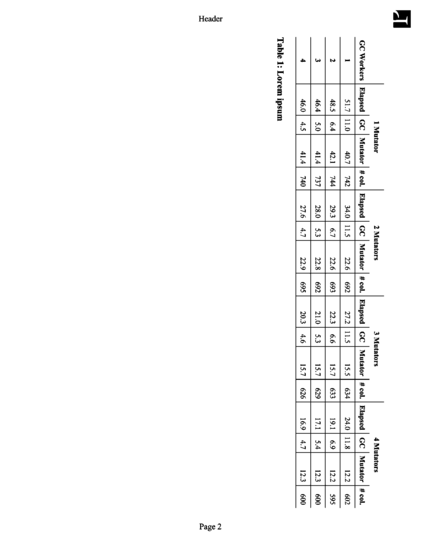
Image of a large table printed sideways so that its width fits            along the page's length.
This table is too wide to fit on the paper, so we use prince-rotate-body in a named page to print it sideways. Download the PDF or the HTML.

Sometimes it is necessary to rotate a block element so that it fits on the page. This is common with tables. Figure Printing a big table sideways shows a table, rotated so that its width fits within the page's length. This can be acheived with the following rules:

@page big_table {
    prince-rotate-body: landscape;
    prince-shrink-to-fit: auto;
}

table.big {
    page: big_table
}

The prince-rotate-body property works within @page rules only, so this example uses a named page to place the table on a page of its own. Then the @page rule for big_table pages uses the prince-rotate-body property to tell prince that the body of the page, but not the headers and footers, should be rotated. The table in this example is still too wide so we also use the prince-shrink-to-fit property to make it a little smaller.

If you download the full example (HTML or PDF) you will see that the paragraphs before and after the table are not placed on the same page. This is because they do not belong to the same named page (see Named pages). However on page four there are two tables, both tables belong to the same named page and therefore Prince will try to place them together on the same page.

Another way of rotating content is by changing the writing mode with the writing-mode property, or by transforming an element with transform: rotate() - see Rotating content in table cells.

Copyright © 2002 – 2019 YesLogic Pty. Ltd.
  • About Us
  • Privacy Policy
  • Contact Us